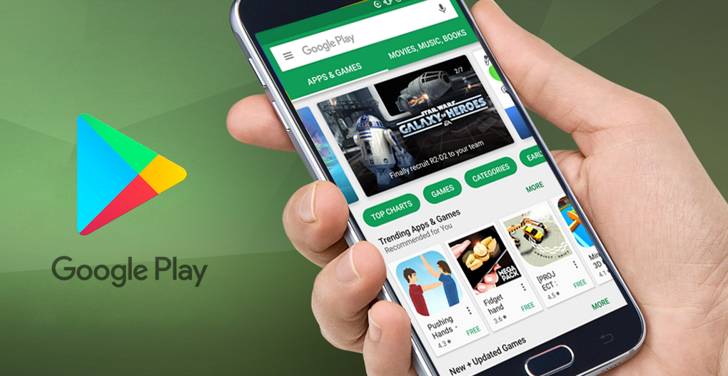
Google Play Store
| Technical Specification |
Download |
| Latest Updated |
Oct 25, 2024 |
|
| Latest Version |
2024.09.53715_(679054039.679054039-190400) |
| Developer |
Google LLC |
| Operating system |
Android |
| Language |
English |
| Price |
Free |
| Available version |
2024.09.53715_(679054039.679054039-190400) |
| Version history |
2024.03.50149_(625366451.625366451-000400) 26.9.22-21 22.5.28-16 |
Google Play Store is an essential platform that offers a vast selection of applications, games, and digital content, catering to diverse user needs. With its intuitive interface, users can seamlessly browse, search, and download their favorite apps while managing preferences through personalized recommendations. The store focuses on security, providing verified apps to ensure a safe experience. Regular updates and user reviews enhance the decision-making process, empowering users to discover new tools and entertainment tailored to their lifestyle, enhancing productivity and leisure time.
More Details
Below are some of the notable features of the Google Play Store:
- Comprehensive App Repository: The Google Play Store serves as an extensive digital marketplace, providing access to millions of applications across various categories, including productivity, entertainment, education, and gaming. Users can effortlessly browse, search, and discover both free and paid apps, ensuring a tailored experience that aligns with individual preferences and needs.
- Robust User Reviews and Ratings: To aid consumers in making informed decisions, the Google Play Store integrates a sophisticated user feedback mechanism. Each application is accompanied by a detailed ratings system and user-generated reviews, allowing prospective users to gauge the quality and reliability of an app before installation. This feature promotes accountability among developers and fosters a community of engaged users.
- Seamless Multi-Device Synchronization: The Google Play Store supports multi-device functionality, enabling users to synchronize app downloads and personal preferences across all their Android devices. By utilizing Google Account services, users can access their apps, game progress, and settings effortlessly, ensuring a coherent and uninterrupted experience regardless of the device in use.
- Intelligent App Recommendations: Leveraging machine learning algorithms, the Google Play Store provides personalized app recommendations tailored to user activity and preferences. By analyzing usage patterns and preferences, the platform suggests relevant applications that enhance user satisfaction and engagement, thus facilitating the discovery of high-quality apps in an ever-expanding digital landscape.
Extra Details
How to uninstall the Google Play Store? You can uninstall Google Play Store on your mobile device by following these steps: Locate setting icon on your phone. Tap Application manager or Apps Touch Google Play Store. Press uninstall.
How to install the application
How to download and install Google Play Store on your mobile device? The steps below explain how you can download the app on Google Play:
- Launch Google Play on your Android device
- Input Google Play Store in the search bar
- Touch the most relevant search result
- Tap Install to download the app
- Wait for the process to complete.
DISCLAIMER
- The above app is a mobile app that will not change any system settings on your phone
- All apk files downloaded from our site are secure
- We provide the official download link from Google Play Store
- The trademarks and logos of all the merchants displayed on the website are the property of their respective owners. The website is not affiliated or associated with any of them
- Our website and its content strictly comply with all the terms and conditions of Google Ads Advertising policies and Google Unwanted Software policy
Steps to Uninstall android App
How to uninstall the Google Play Store? You can uninstall Google Play Store on your mobile device by following these steps:
- Locate setting icon on your phone.
- Tap Application manager or Apps Touch Google Play Store.
- Press uninstall.
Tips & Tricks
More about the Google Play Store app
- Utilize the Advanced Search Filter to refine your app discovery process. By specifying categories, ratings, and price ranges, you can efficiently pinpoint applications that best meet your needs, saving you valuable time and ensuring a personalized selection experience.
- Take advantage of the Wishlist feature to manage your future app investments. By adding apps to your Wishlist, you can easily track upcoming releases or discounts and make informed purchase decisions when the time is right.
- Engage with the Community Reviews section to gather insights from other users. This feature allows you to make well-informed choices based on firsthand experiences and ratings, potentially avoiding applications that may not align with your expectations.
- Leverage the Update Alerts to stay informed on your favorite apps. By enabling notifications for updates, you will not miss new features, improvements, or bug fixes, allowing you to optimize your app usage and enhance overall performance.
- Explore the Family Library feature to share purchased apps with family members. This function fosters collaboration and maximizes the utility of your applications, ensuring that everyone in your household benefits from your investment in digital resources.